The CSV Order import tool lets you upload a spreadsheet to submit multiple orders to Printful at once, instead of entering them one by one. It's especially useful if you're processing a high volume of orders manually or migrating orders from another platform. This guide walks you through accessing the tool, preparing your data file, and mapping your columns so your orders import correctly.
Step 1: Access the CSV Order import tool
You can find the Import orders tool in your Dashboard → Orders section.
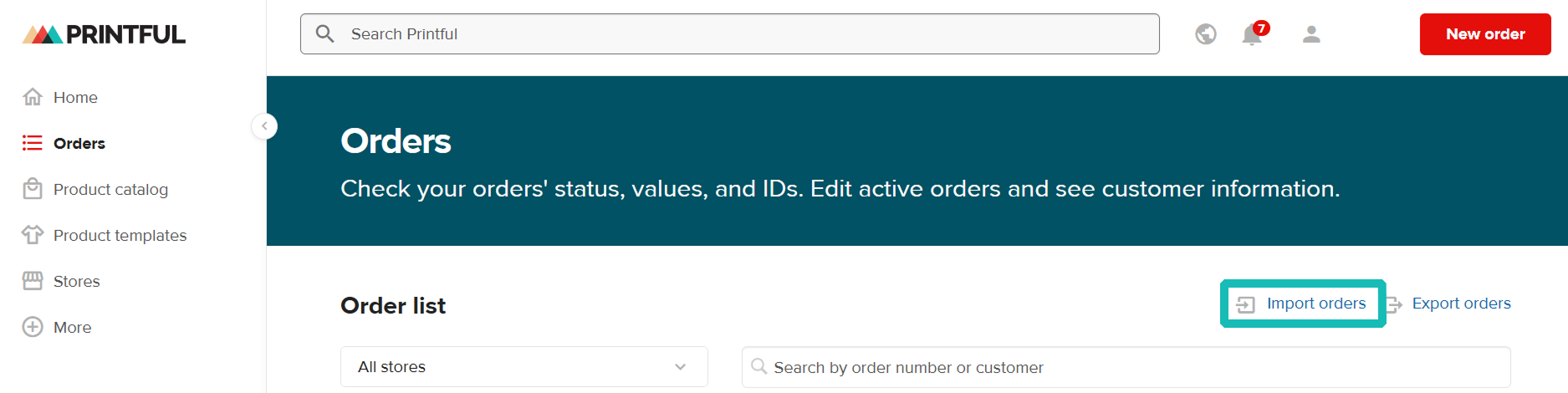
Step 2: Choose how to upload your data
There are two ways to import bulk orders using a spreadsheet:
- Use Printful’s template: download it from the bottom of the Import orders window, then fill in the required fields.
- Use your own file: make sure it includes the necessary order and product information (see the required columns below).
Step 3: Format your file correctly
Before uploading, make sure your file follows this format:
- Accepted file types: CSV or XLS.
- Each row should represent a separate product variant.
- You can include up to 10,000 rows.
- Only synced products can be included in your file.
Step 4: Fill in the required columns
To make sure your orders import correctly, your spreadsheet should include these columns:
- Order ID: A unique ID you choose (letters, numbers, or both). Use the same ID for multiple rows to group items into one order.
- Product ID: Identifies the product itself; not tied to a specific size or color.
- Variant ID: Identifies the exact size and color combination for that product.
- Quantity: Number of units ordered for that variant.
- Full name: First and last name of the recipient.
- Company (optional).
- Address line 1: Street name and number.
- Address line 2 (optional): Apartment, suite, or other info.
- State/Province/Prefecture: Required for orders going to the USA, Canada, or Japan.
- City.
- Country: Two-letter country code (e.g., “US”).
- Postal/ZIP code.
- Phone number (optional): Helps with delivery updates.
Where do I find the Product ID and Variant ID for importing orders in bulk?
- Go to your Dashboard, then click Stores (or My products → Published).
- Choose your connected store. You'll see a list of your products, with the Product ID displayed just below each product name.
- Click on a specific product to open it. All of its variants are listed there, with the Variant ID shown under each variant name. Copy it directly into your spreadsheet.
Matching your column names
You can name your spreadsheet columns however you like. In Step 2 of the import tool, you'll match your column names to the corresponding fields in our system. For example, if your column is named “Name,” you can select that it represents the Full name field during setup.
This mapping helps the tool recognize your data correctly and apply it to the right order fields.
Still need help? Our Support Team is here for you—reach out anytime through our contact form or start a chat with us.